


YouTube is where a lot of live video ends up: product launches, conference keynotes, sports coverage and the all-hands meeting that has to reach people outside the office. Getting good YouTube Live captions onto those streams is harder than it should be. YouTube's own automatic captions for live streams are available in English only, and YouTube itself warns that they "might misrepresent the spoken content due to mispronunciations, accents, dialects or background noise" (YouTube Help). When the person on screen is your CEO and the words on screen are your product names, that matters.
Timbra, CaptionHub's live captioning and translation product, publishes captions straight to a YouTube Live stream through YouTube's caption API. This guide explains how to caption a YouTube Live stream with Timbra, what to set up on each side, and what to check before you go live.
Why caption your YouTube Live streams
Live captions let deaf and hard of hearing viewers follow what is being said as it happens. Most organisations measure this against the Web Content Accessibility Guidelines (WCAG), published by the World Wide Web Consortium (W3C), the international body that develops web standards (W3C). WCAG makes live captions a Level AA requirement: success criterion 1.2.4 says "captions are provided for all live audio content in synchronized media" (W3C). The W3C's guidance adds that good captions identify who is speaking and note significant sounds as well as the words.
Many governments build their accessibility rules on WCAG. In the US, the Department of Justice's rule under Title II of the Americans with Disabilities Act requires state and local governments, including public universities and public hospitals, to make their web content meet WCAG 2.1 Level AA by 26 April 2027 if they serve a population of 50,000 or more, or by 26 April 2028 if they're smaller (ADA.gov). In the EU, public sector websites and apps are measured against the harmonised standard EN 301 549, which draws heavily on WCAG 2.1 (European Commission). Our guide to caption laws in the US, UK and EU goes through the rules market by market. Wherever you're based, if your organisation has committed to WCAG Level AA, your live streams are part of that commitment, and Timbra can caption every one of them.
Captions also keep the rest of your audience watching. Watching with captions on is now mainstream. In a 2025 AP-NORC poll, a third of US adults said they always or often use subtitles or captions, and a third of caption users said they turn them on because they're somewhere noisy (AP-NORC). A 2026 XR study of more than 3,000 viewers in the US, UK, France, Spain and Germany found that 80% use captions at least sometimes, and most of them do so by choice rather than because of a hearing difficulty. US viewers in the study said captions help them understand dialogue, catch details they would otherwise miss and pay closer attention (XR).
Live streams get exactly these viewers: people watching at their desks with the sound off, on trains and in busy venues, and many following along in their second or third language. For a global town hall or product launch, captions in the right language keep their attention on your speakers instead of letting them drift off.
What YouTube's automatic captions leave out
YouTube's live automatic captions are a useful starting point, but they come with conditions. They are English only, they have to be switched on for each stream, and they only work with normal latency streaming. After the stream ends, YouTube generates new automatic captions for the VOD version of the stream, which may differ from what viewers saw live (YouTube Help).
More importantly for brand and event teams, you can't tell YouTube's automatic captions how to spell your speakers' names, your products or your industry terms. And there's no translation for viewers who need another language.
YouTube does accept captions from outside services. In a stream's settings you can choose to post captions to a URL: YouTube gives you a signed captions ingestion URL, and a captioning service sends captions to it (YouTube Help). That is the route Timbra uses.
What Timbra adds to YouTube Live captions
Timbra captions your stream in real time using AI speech recognition that you tune to your event, and sends the captions to YouTube through that captions ingestion URL. Once it's connected, captions appear on the stream without anyone retyping or copying files during the event. Around that connection, Timbra gives you the controls YouTube's automatic captions lack.
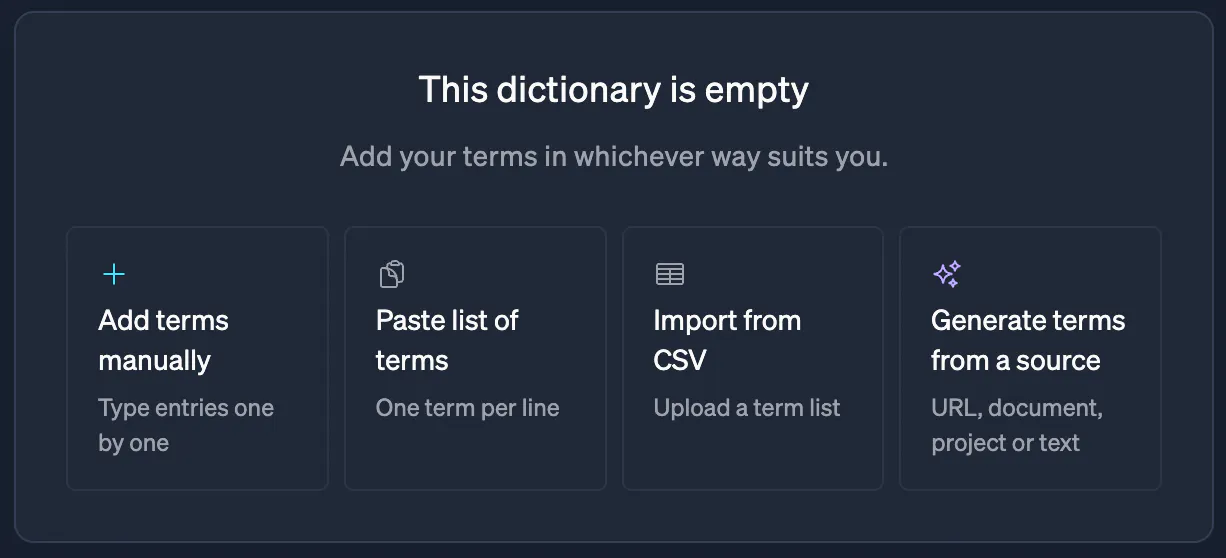
Custom dictionaries steer speech recognition towards the words you care about. For live events, CaptionHub recommends adding speaker names, product names, company names and industry terminology (CaptionHub knowledge base).
Timbra supports more than 50 source languages and translation into 250+ languages through Amazon, DeepL and Google. Termbases keep brand names, product names and preferred terms consistent across languages, so your product isn't renamed halfway through the keynote. Each YouTube target can carry the source language or any of the project's translations, and one project can feed several YouTube live streams, each captioned in its own language. Live captions for YouTube can then serve audiences outside your home market as well as at home.
You can also set a primary and a fallback transcription service, and switch between them during the event if you need to.
Producers can start, monitor and stop a Timbra project from the dashboard, from a mobile device, or through the API for automated workflows. Status badges show at a glance whether a project is listening for your encoder, captioning, stopped or ended. That means the producer already running your stream can look after captions as well, without booking an on-site captioner for each event.
When the event finishes, you can download a VTT caption file for every language from the project's History tab. That gives you a record of exactly what viewers read during the stream, which you can keep for accessibility audits and use to review how the captions read before your next event.

Your video platform creates the VOD version of the stream, and teams often trim the start and end or add a slate before publishing it. For the best captions on that VOD content, bring the finished video into CaptionHub and caption it there, with the same custom dictionaries and termbases you set up for the live event. Your team can review and edit the captions in the CaptionHub editor before they go out, so the replay gets your speakers' names and product names right too. Live and VOD captioning sit in the same platform, so your stream and its replay share one set of custom dictionaries and termbases, one team and one supplier, instead of a live captioning tool and a separate service for VOD content.
YouTube is one of several places Timbra can send captions. Timbra also has player plugins for Brightcove, Video.js, THEOplayer, HLS.js and Mux, where viewers can switch between languages, and its in-room display and companion put captions on venue screens and attendees' phones. If your event reaches people on your own website or in the room as well as on YouTube, Timbra can caption those audiences too. We're always developing and launching new integrations, so the list of places Timbra can send captions keeps growing.
How to caption a YouTube Live stream with Timbra, step by step
The full instructions are in our step-by-step setup guide. Here is the short version.
In YouTube
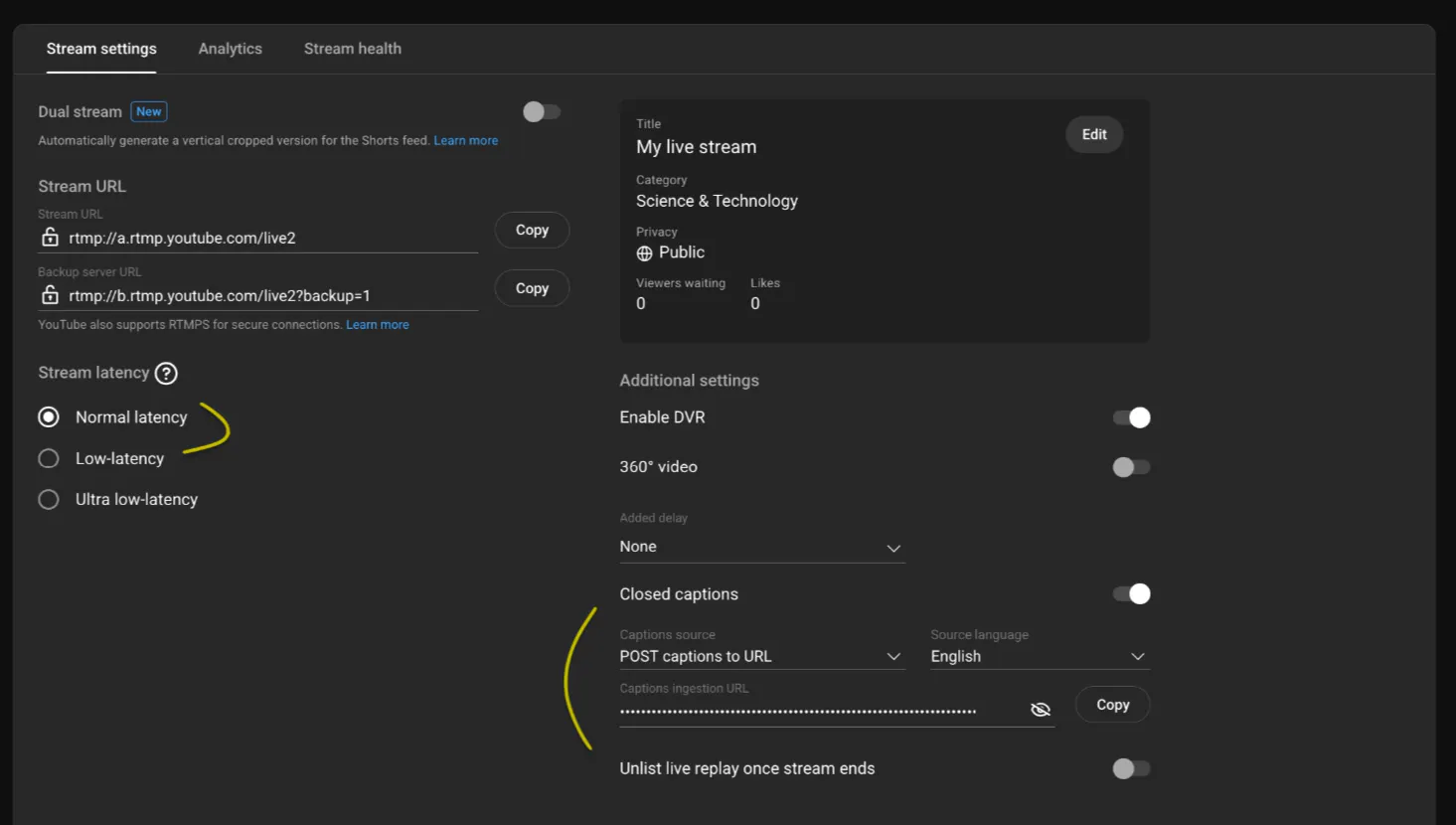
- Open your live stream in YouTube Studio and go to the Stream settings tab.
- Select Normal latency. YouTube only accepts captions in this mode.
- Turn on closed captions, set the captions source to Post captions to URL, and choose the language you want to caption in. This can be your source language or a translation.
- Copy the captions ingestion URL.
In CaptionHub
- Create a new Timbra project with an RTMP or SRT input and a YouTube Live output.
- In Languages & settings, choose your transcription service and fallback, add your custom dictionary and termbase, and add any translations you want to caption in.
- Open the Flow tab and click Add new target.
- Give the target a label, paste in the YouTube captions ingestion URL and choose its caption language: the source language or one of the project's translations. Pick the same language you chose in YouTube. You can also add a link to the YouTube channel.
- Set your encoder to stream to YouTube and to Timbra at the same time, over RTMP or SRT. Vision mixers such as vMix and Wirecast, and most hardware encoders, can send two outputs at once. Start the encoder. When Timbra shows Listening, it is waiting for your stream; once audio arrives, the project moves to Captioning and captions start flowing to YouTube.
If Timbra reports that it can't publish to YouTube, check the captions ingestion URL first. It is the most common cause.
What to check before you go live
Most caption problems on the day can be avoided with some preparation beforehand.
- Load your custom dictionary and termbase early. Get the running order and add every speaker's name, plus product and company names, to your custom dictionary before the event. If you're captioning in other languages, add your brand and product terms to the termbase too.
- Run a test stream. An unlisted YouTube stream with the same encoder settings lets you confirm captions arrive and read well.
- Mute captioning for walk-in music. Timbra lets you mute captioning so pre-show music or holding content isn't transcribed.
- Agree who is watching the project. Decide who on the team has the Timbra project open during the event, and on which device, so someone can switch transcription service or stop captioning if needed.
Caption your next YouTube Live stream with Timbra
If your next launch, keynote or town hall is going out on YouTube, Timbra can caption it in the language your audience speaks, with your speakers' names and product names spelled correctly, published straight to the stream.
New to Timbra? Book a demo and we'll walk you through the setup for your own event, using your speakers, your product names and the languages your audience needs.
Already a CaptionHub customer? If you caption VOD content with us, Timbra brings the same custom dictionaries and termbases to your live streams. If you already use Timbra, the YouTube Live output is available to every Timbra team, so you can add it to your next live project by following our step-by-step setup guide.
See CaptionHub in action
Get a personalised walkthrough of captioning, translation and voiceover at enterprise scale.


